

Image Action Overlay is a small Chrome extension I built to save and collect images and videos from the web without the usual right-click shuffle. Hover over any image and a compact action bar appears in its corner. One click saves it, sends it to my image library, or, on videos, downloads the clip.
Install: [Chrome Web Store link]
What it does
Download image. Saves the full-size image straight to your Downloads folder. On sites that load several sizes of the same picture, like Instagram, it grabs the largest one instead of the smaller version shown on screen.
Send to Nodebook. Uploads the image to Nodebook, the self-hosted image and prompt library I run on my home server. The extension converts images to JPEG first when needed, so formats like WebP and AVIF go through cleanly. PNGs are sent unchanged, so any metadata embedded in them survives.
Download video. When you hover a video, a video button replaces the image buttons. On social sites that stream video in pieces, which is most of them, the extension finds the link to the post and passes it to a self-hosted Cobalt server, which returns a proper file. Plain video files on ordinary sites download directly. Carousels with several videos download all of them.
Why I built it
Most sites make saving images harder than it should be. Instagram, for example, places an invisible layer over every photo, so right-click and most image extensions never reach the actual picture. Image Action Overlay looks at everything under your cursor rather than just the top layer, so it finds the image even when a site tries to cover it. The buttons also run in an isolated container, so a site’s own styles can’t hide or break them.
Setup
The Download button works right after installing, with no setup.
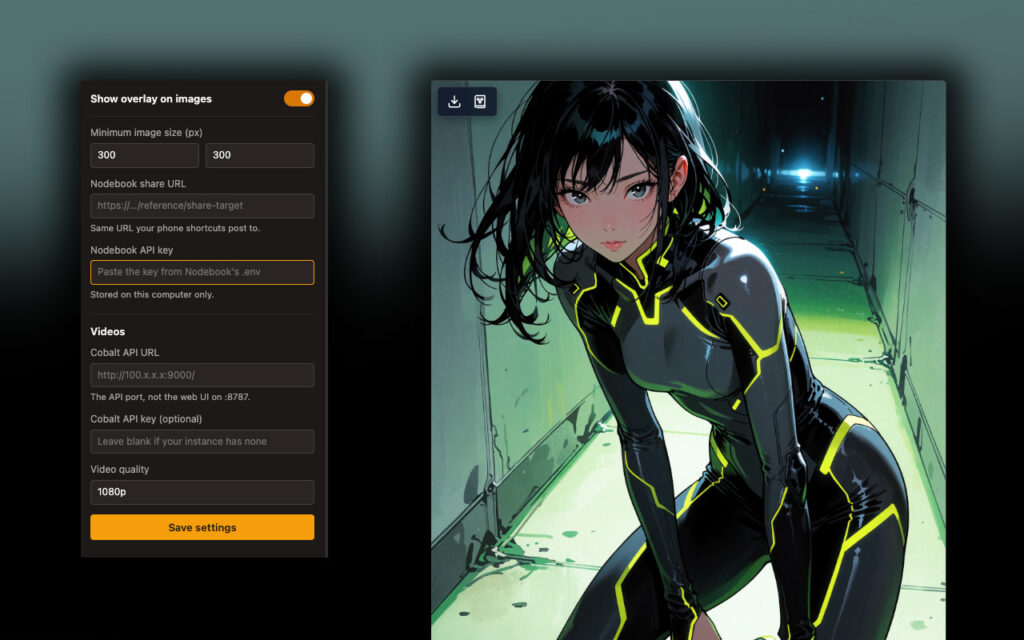
The other two buttons talk to servers you run yourself. Open the extension’s popup from the Chrome toolbar to set:
- the minimum image size that triggers the overlay (200×200 pixels by default, so icons and thumbnails don’t get in the way)
- your Nodebook server’s share address and API key
- your Cobalt server’s address, an optional API key, and your preferred video quality
If a button can’t reach its server, it turns red, and hovering over it tells you what went wrong. Green means it worked; amber means Nodebook already had that image.
What it doesn’t do
It doesn’t download YouTube videos, in line with Chrome Web Store policy. It doesn’t work on content Chrome itself can’t see, like DRM-protected streams. The Nodebook and Cobalt features are built around my own setup, so they’re only useful if you run those servers.
Privacy policy
Last updated: September 29, 2026
Image Action Overlay has no servers of its own. It doesn’t collect analytics, track your browsing, or send anything to me or to any third party.
When you click a button, the extension reads the address of the image or video you chose and the page it’s on. Download saves the file to your computer. Send to Nodebook and Download video send the image, or the link to the post, only to the server addresses you entered in the extension’s settings.
Your settings (on/off state, minimum image size, server addresses, video quality) are stored in Chrome’s storage and may sync across browsers where you’re signed into Chrome. API keys are stored only on the device where you enter them and are never synced. Removing the extension deletes its stored settings.
Questions about this policy: [your email address]
Version history
1.5: Initial Chrome Web Store release. Image download, send to Nodebook with automatic JPEG conversion, and video download through Cobalt.